Scheduled tasks
Describe a job once and Claude runs it on a clock. The briefing is finished before you sit down.
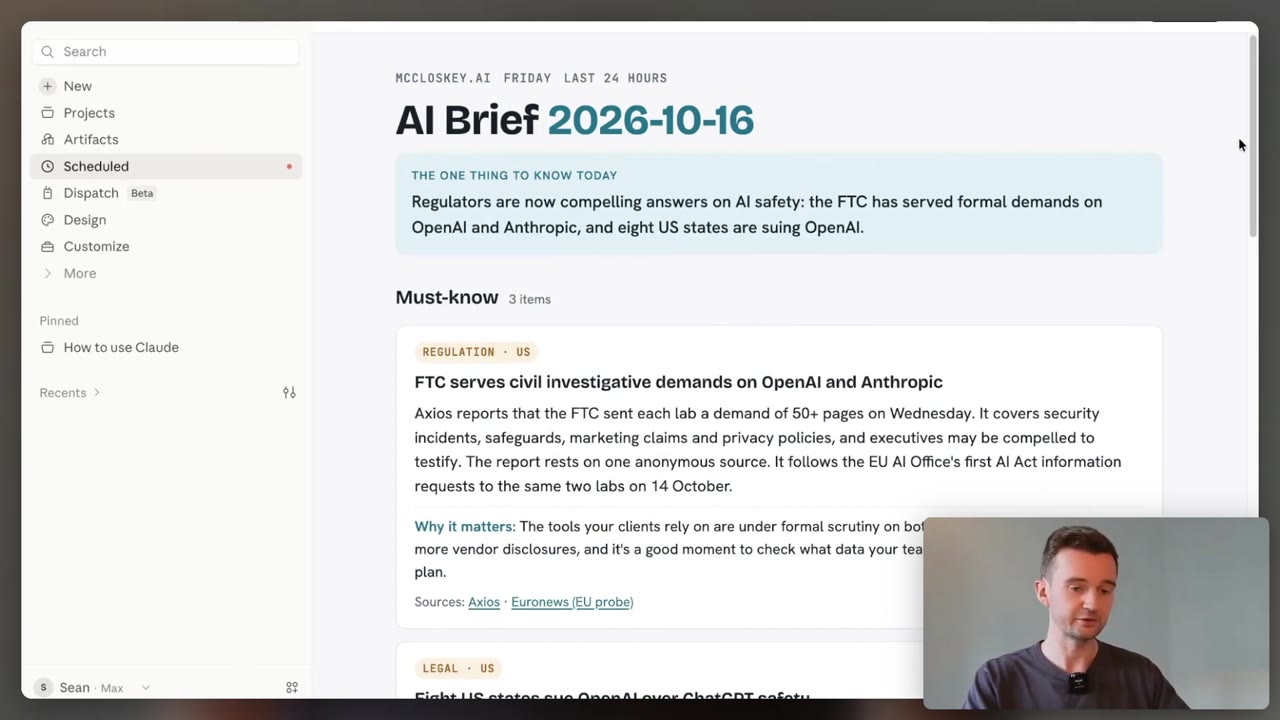
“Who starts it: you, or a clock?” Every tool you own sits in one pile or the other. The ones you have to remember are the ones you stop opening.
The Scheduled tasks building block from Claude 101, in depth. New to Claude? Start there: Claude 101 →
Delegate
Write the job once, not every time
You write the instructions once and Claude keeps them.
What arrives is a finished thing: a report, a briefing, a summary.
- What do you gather from scratch every single week?
- What would you rather read than go and collect?
- Which job is boring enough that you skip it?
On every paid plan: Pro, Max, Team and Enterprise. A task can use the connectors, skills and plugins you have already set up, so it reaches the same apps you do.
Cadence
Decide when it should land
Hourly, daily, weekly, on weekdays, or only when you run it yourself.
Each run opens its own session, so you read it like any other piece of work.
- Before your day starts, or at the end of the week?
- How stale is the answer allowed to be?
- Would running it by hand for a fortnight teach you more?
Everything lives under Scheduled in the left sidebar: the runs coming up, the runs already done, and the buttons to pause, edit, delete or run one now.
Remote
Why some tasks still need your computer awake
A task built on your connectors and the files in your Claude account runs remotely.
It fires on its cadence with the laptop asleep and the desktop app shut.
- Does this job touch a folder on your own machine?
- Could that file live in a connected app instead?
- Is your computer honestly going to be on at seven in the morning?
Here is the trap. A task that needs local files or apps will only run locally, so Claude Desktop has to be open and the machine awake. The built-in schedules cannot be tied to a folder on your computer.
Your first task, in four steps
Automating a job you have never checked just multiplies the mess. Prove it first.
- 1
Run it by hand until you like the result. Same prompt, ordinary task, no clock yet.
- 2
Say it in one line with the time in it. “Every weekday at 8am, summarise the new messages in my team’s Slack channels.”
- 3
Check the name, the schedule and the instructions. Claude proposes all three, and nothing is switched on until you approve them.
- 4
Read the first three runs. A task is only alive if you can read its output. Scheduled is not the same as done.
Choose the approval mode deliberately. Manual asks you before each action, which stalls a task you are not there to answer. Auto keeps going and safety-checks each action, and it uses more of your limit.
Jobs worth putting on a clock
Start with the one you already do badly because you do it last.
Morning briefing
before your day starts- Messages, email and calendar from the last day.
- Waiting when you sit down.
Weekly roundup
friday, not monday- The week’s numbers pulled into one summary.
- From Drive, a spreadsheet or a connected tool.
Inbox triage
the pile you dread- Sort and label what came in.
- Flag only the few that need you.
A fourth worth stealing: recurring research. Track one topic, one competitor or your own industry on a regular cadence, and read it with a coffee.
- Delegate: write the instructions once, Claude keeps running them.
- Cadence: hourly, daily, weekly, weekdays, or on demand.
- Remote: it runs with your computer off, unless the job needs your computer.
- Read it: a run nobody opens is not automation, it is a folder.
This week: take one job you already do by hand and put it on a clock.
Most good tasks need your apps plugged in first: Connectors → Give the task a permanent home for its context: Projects →
Do it with someone. Everything here is free and you can run it alone. If you would rather work through it with me, one to one, book a free 30-minute chat or see lessons and prices. No pitch.